Why Privacy-Conscious Makers Are Ditching Cloud Converters for File Studio
We’ve all been there: you have a sensitive tax document, a scanned passport, or a batch of proprietary product images that need a quick format change. You hop on Google, search for a "PDF to JPG converter," and click the first link. Suddenly, you’re forced to upload your private data to a server you don’t know, managed by a company you don’t trust, just to perform a simple task.
As indie makers and solopreneurs, our data is our business. Relying on cloud-based SaaS tools for basic file manipulation isn't just an inconvenience—it’s a security liability. That is exactly where File Studio changes the game. It’s a powerful desktop app that brings enterprise-grade file management to your local machine, ensuring your files never leave your sight.
What Is File Studio?
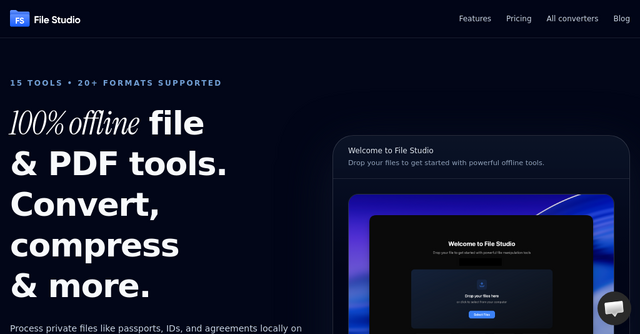
File Studio is a dedicated desktop app for macOS and Windows designed to handle PDF and image processing entirely offline. Think of it as a Swiss Army knife for your documents: it can convert, compress, merge, and edit files without ever needing an internet connection.
There are no accounts to create, no monthly subscriptions to manage, and—most importantly—no cloud uploads. Whether you are a photographer dealing with RAW files, a freelancer managing contracts, or a remote worker handling sensitive identity documents, File Studio is built to keep your workflow fast, efficient, and private.
Why You Should Care About Offline-First Tools
The shift toward "offline-first" software is more than just a trend; it’s a necessity for those of us who prioritize security. When you use a web-based converter, you are essentially trading your data privacy for convenience.
By using File Studio, you eliminate the risk of sensitive files sitting on a third-party server. Because the app runs locally on your computer, the processing speed depends on your hardware, not your internet connection. This makes it a perfect tool for working on the go, even in environments with spotty or non-existent Wi-Fi.
Key Features That Simplify Your Workflow
File Studio packs 15 distinct tools into one clean, native interface. Here is why these features matter for your daily operation:
1. Robust PDF Management
PDFs are notoriously difficult to edit without expensive, bloated software. File Studio gives you the essentials:
- Merge and Split: Combine multiple documents into one or break them into individual pages.
- Page Manipulation: Quickly reorder or rotate spreads.
- Security: Easily remove passwords from protected PDFs so you can actually work with your own documents.
2. Powerful Image Processing
If you work with visual assets, the image toolkit is a lifesaver. It supports over 20 formats, including HEIC (the default iPhone format), WebP, AVIF, and 14 different RAW types. This is essential for photographers or creators who need to prepare assets for web use. You can resize, crop, rotate, flip, and even add watermarks or create collages without needing a heavy photo editor like Photoshop.
3. Batch Processing Capabilities
One of the biggest bottlenecks for solopreneurs is repetitive tasks. If you have 50 images to convert from HEIC to JPG or a folder of PDFs that need to be compressed, you don't want to do them one by one. File Studio allows you to batch-process hundreds of files at once, saving you hours of tedious manual work.
Practical Use Cases for Indie Makers
How does this fit into your actual day-to-day? Here are a few scenarios where File Studio shines:
- Handling Sensitive Onboarding: As a freelancer, you often deal with passports, IDs, and contracts. Processing these locally ensures you aren't leaking client data to a random cloud server.
- Web Optimization: You’ve finished a blog post or a product page, but your images are too large. Use the smart compression feature to shrink them while keeping them sharp, ensuring your site stays fast for SEO.
- Streamlining iPhone Photos: If you take product shots on your iPhone, you're constantly dealing with HEIC files. File Studio lets you drag and drop those images and instantly export them as universal, high-quality JPGs.
- Preparing Documentation: Need to convert a scanned receipt or a PDF invoice into an image to attach to an email? The "PDF to JPG" tool handles this in seconds.
No Subscriptions, No Strings Attached
One of the most refreshing aspects of File Studio is its business model. In an era where every small utility demands a recurring monthly fee, File Studio opts for a simple, one-time purchase.
When you buy a lifetime license, you own the software. You get all the current tools and future updates for a year, all without the "subscription fatigue" that plagues modern SaaS users. It’s a breath of fresh air to pay once and never worry about a recurring charge hitting your credit card.
Getting Started with File Studio
Setting up the app is as straightforward as it gets:
- Download: Grab the installer for your Mac or Windows machine.
- Drag and Drop: Launch the app and drop your files into the window. It doesn't matter if it's a single document or an entire folder.
- Pick Your Tool: Whether you need to resize, convert, or merge, the interface is intuitive and requires zero learning curve.
- Export: Save your optimized, secure files to your local drive.
Final Thoughts
As indie makers, we often focus so much on the tools we use to grow our businesses that we forget to optimize the tools we use to run them. Small, repetitive tasks—like converting a file or merging a PDF—add up. If you are tired of uploading your private documents to sketchy websites and want a reliable, one-time-purchase solution that respects your privacy, File Studio is an easy recommendation.
It’s fast, it’s secure, and it stays out of your way. If you’re ready to reclaim your workflow and stop relying on the cloud for simple file tasks, head over to their website and give the File Studio free trial a spin to see how it fits into your daily routine.